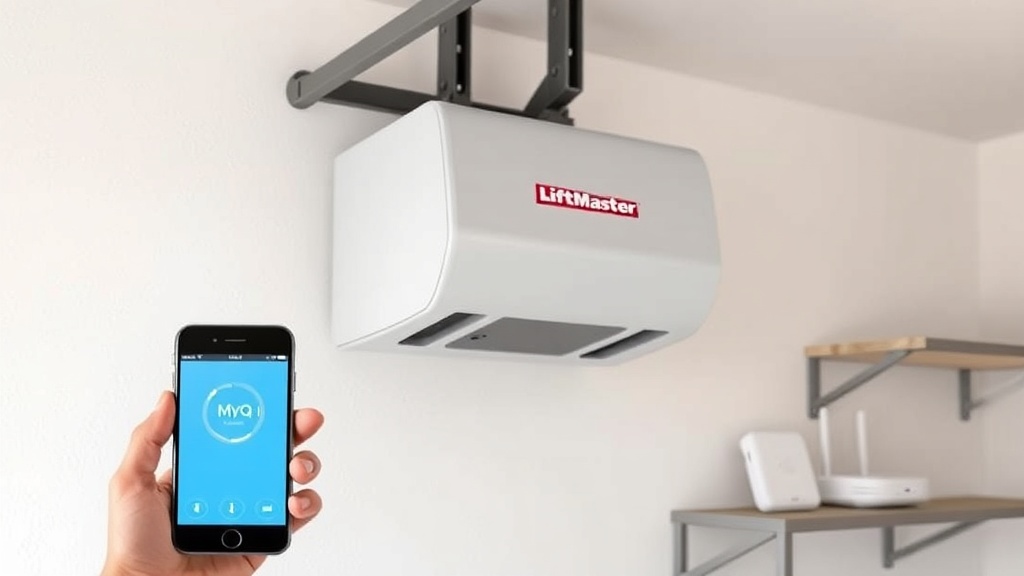
What Triggers a WiFi Pairing Reset on the LiftMaster 8500 Wall-Mount Opener?
The LiftMaster 8500 is a popular jackshaft-style garage door opener known for its space-saving design and quiet operation. However, like any smart home device, its WiFi connectivity can sometimes fail, requiring a full pairing reset. This guide focuses on troubleshooting error codes that indicate a WiFi issue, providing a step-by-step approach to restoring network communication.
Common causes include a recent router change, interference from nearby electronics, or a corrupted network profile stored in the opener’s logic board. When the MyQ app cannot find the opener, or the opener flashes error codes related to connectivity, a systematic reset is often the fastest solution.
Which Error Codes Indicate a WiFi Pairing Problem on the LiftMaster 8500?
The LiftMaster 8500 communicates issues through its LED indicator on the wall control panel and the Learn button light. When a WiFi pairing failure occurs, the opener cannot establish a solid connection to the 2.4 GHz network. Below is a severity table to help homeowners quickly assess the situation.
| Error Code / LED Behavior | Severity Level | Description | Initial Action |
|---|---|---|---|
| Constant Red Learn Button | Low | Opener is attempting to connect but cannot reach the router. | Check router position or restart the modem. |
| Flashing Orange Learn Button (3 times) | Medium | Network key or password mismatch; authentication failure. | Verify the 2.4 GHz SSID and password are correct. |
| Rapid Flashing Red Learn Button (continuous) | High | Critical network timeout; the opener has lost all stored WiFi data. | Perform a full factory reset of the WiFi module. |
| No Light on Learn Button | Critical | Power issue or logic board failure; may require professional diagnosis. | Check breaker and inspect wiring; consult LiftMaster 8500 Opener Motor Noise Diagnosis: Causes and Solutions if noise accompanies the loss of light. |
If the opener is unresponsive to any commands, a full reset of the wireless module is necessary before pairing can be attempted again.
How to Perform a Manual LiftMaster 8500 WiFi Pairing Reset
A manual reset clears the opener’s memory of previous network connections and returns it to a factory default state for WiFi. This process does not affect door travel limits or remote programming, only the wireless parameters. Follow these steps precisely:
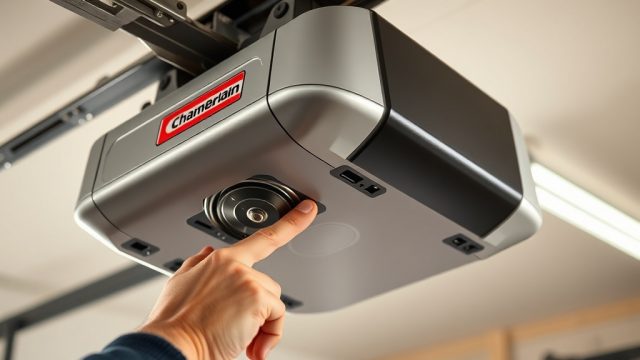
- Locate the yellow Learn button on the back of the opener (above the terminal block). Press and hold it for 6 seconds until the arrow buttons on the wall control start flashing. Release immediately.
- Wait 30 seconds for the opener to reboot. The MyQ logo on the wall control will go dark momentarily.
- Press and release the yellow Learn button once. The LED will turn solid green if the reset was successful. If it remains red, repeat step 1.
- Within 30 minutes of pressing the Learn button, open the MyQ app on your smartphone. Tap the plus icon (+) and select “Garage Door Opener”. Follow the in-app prompts to enter your 2.4 GHz WiFi password.
If the app reports “unable to connect,” the issue may stem from a LiftMaster 8500 Wall-Mount Opener Motor Capacitor Testing Tutorial if the motor hums but fails to move, but for WiFi problems, double-check that the router is broadcasting a 2.4 GHz signal (many modern routers use the same SSID for both bands, which can confuse older IoT devices).
What If the MyQ App Cannot Detect the LiftMaster 8500 After Reset?
Sometimes, the hardware reset works, but the app still cannot find the opener. This is often due to interference or a router setting blocking the device. Check the following:
- Signal strength: Move your smartphone (acting as a bridge) within 10 feet (3 metres) of the opener during pairing. Thick concrete or metal garage walls can significantly weaken the signal.
- WiFi band: Ensure the router’s 2.4 GHz network is enabled. The LiftMaster 8500 does not support 5 GHz bands. If your router uses band steering, disable it temporarily or create a dedicated guest network on 2.4 GHz.
- Firewall settings: Some routers block “unknown” devices. Temporarily disable the firewall for 5 minutes during pairing, or add the opener’s MAC address (found on a sticker on the back of the opener) to the allowlist.
- App version: Update the MyQ app to the latest version from your app store. Older versions may not support newer firmware protocols.
If none of these steps work, consider performing a LiftMaster 8500 Remote Programming: Troubleshooting Common Issues to confirm the opener’s basic radio communication is intact, then retry the WiFi process.
What Owners Say About the LiftMaster 8500 WiFi Reset Process
Garage owner experiences with the WiFi reset process vary. On forums like our GarageGuru community, many users report that the manual reset method resolves 80% of connectivity issues within 10 minutes. One owner from Manchester noted: “I had the flashing orange LED after a router upgrade. The factory reset cleared everything, and I was back online in less than five minutes.”
However, some share frustration with the narrow 2.4 GHz requirement. A long-time user in Edinburgh stated: “My new mesh router broadcasts both bands under one name. I had to create a separate guest network just for the opener. That fixed it, but it was annoying to troubleshoot.” Another common positive remark involves the resilience of the reset—once fixed, the connection rarely drops again. Several owners recommend saving the MyQ login credentials after a successful reset to avoid repeated password entries.
For owners experiencing motor-related issues alongside WiFi problems, such as grinding sounds or slow operation, LiftMaster 8500 Opener Motor Replacement Cost: DIY vs Pro Guide provides a cost analysis that can help decide whether to repair or replace the unit.
Frequently Asked Questions about LiftMaster 8500 WiFi Pairing Reset
1. How long does the LiftMaster 8500 WiFi reset take?
The entire process, from pressing the Learn button to reconnecting through the MyQ app, typically takes 5 to 10 minutes. The opener needs 30 seconds to reboot after holding the button.
2. Can I reset the WiFi without losing my remote programming?
Yes. The WiFi reset only clears network settings (SSID and password). Remote controls, keypads, and door travel limits remain intact. The green Learn button flash indicates WiFi data erasure only.
3. What does a flashing red Learn button mean during WiFi pairing?
It signals a critical network timeout. The opener could not obtain an IP address from the router. Verify your router’s DHCP is enabled, or assign a static IP to the opener via the MyQ app.
4. Why does my LiftMaster 8500 keep losing WiFi after a power outage?
This is common if the router takes longer to start than the opener. The opener may have attempted to reconnect before your router was ready. A manual reset as described above restores the connection. Consider adding a UPS (uninterruptible power supply) for both devices.
5. Do I need to call a professional for a failed WiFi pairing?
Not usually. If you have followed all steps and the opener remains disconnected, check if your logic board has a physical antenna connection issue. Loose internal wiring can be diagnosed using LiftMaster 8500 Opener Motor Capacitor Testing: DIY Tutorial, but for WiFi, consider resetting your router first. If the Learn button never lights up, a professional may be needed to inspect the logic board.
6. Will the LiftMaster 8500 WiFi reset work with iPhone and Android?
Yes. The MyQ app is identical for both platforms. The reset procedure is hardware-based, not phone-specific. However, ensure Bluetooth is also enabled on your phone, as newer MyQ app versions use BLE (Bluetooth Low Energy) for initial setup before switching to WiFi.
Regular maintenance of the opener’s motor can also prevent unexpected connectivity issues. If your unit shows signs of carbon brush wear, refer to the LiftMaster 8500 Opener Motor Brush Replacement Guide for step-by-step instructions. A well-maintained motor provides stable power to the logic board during WiFi operations.