Genie SilentMax 1200 WiFi Setup Issues: Solutions & Tips
Getting your Genie SilentMax 1200 connected to your home network can sometimes feel like a battle of patience. Many owners find the opener’s built‑in Aladdin Connect module (model 79178) finicky with certain routers or mobile apps. This article walks you through the most common WiFi setup headaches, from boot loops to app pairing errors—so you can get back to using your garage door without the tech hassle.
1. Why Does My Genie SilentMax 1200 WiFi Light Flash Rapidly and Never Go Solid?
A rapid‑flashing blue or green LED (about 3 blinks per second) on the opener’s external antenna or the Aladdin Connect module indicates it’s in “discovery mode” but cannot lock onto your network. This usually happens when the module cannot find the 2.4 GHz band from your router. The SilentMax 1200’s WiFi radio only supports 2.4 GHz, and many modern dual‑band routers broadcast both 2.4 GHz and 5 GHz under the same SSID. To fix this:
- Isolate the 2.4 GHz band temporarily: Log into your router admin page and disable the 5 GHz radio, or create a separate guest network on 2.4 GHz only.
- Reduce distance and interference: Move your router to within 30 feet of the garage with a clear line of sight. Avoid placing it near metal shelves or concrete walls.
- Power‑cycle the opener: Unplug the SilentMax 1200 for 30 seconds, then plug it back in. The module reinitialises and will attempt to reconnect.
If the light still flashes rapidly after these steps, the module may have a faulty antenna connection. You can inspect the antenna wire inside the opener’s light lens cover; a loose coax pin is a known issue on early‑production models.
2. The Aladdin Connect App Says “Pairing Failed” — What Now?
The “Pairing Failed” error is the most common software‑side complaint among SilentMax 1200 owners. The app (version 8.2 or later) expects the opener to be in a specific pairing sequence, and any interruption — like a phone switching to cellular data or a router firewall rule — breaks the handshake.
- Start over from scratch: Delete the opener from the Aladdin Connect app. Then press and hold the “Learn” button on the opener (located behind the light lens) until the blue LED starts blinking slowly. Within 90 seconds, tap “Add Device” in the app and follow the in‑app prompts.
- Disable mobile data: During pairing, turn off your phone’s mobile data or enable Airplane Mode, then re‑enable WiFi. The app can sometimes get confused if the phone switches between networks.
- Check router firewall settings: Some routers block outbound connections on ports 443 and 8443. Temporarily disable the firewall or add an exception for the Aladdin Connect module’s IP address.
If you still see “Pairing Failed,” reset the module to factory defaults by pressing the reset button (small pinhole on the side of the module) for 10 seconds with a paperclip. Then retry the full pairing sequence.
3. My Opener Connects to WiFi but Disconnects Randomly — Is It a Range Problem?
Random disconnections are often more about signal stability than pure range. The SilentMax 1200’s internal antenna is relatively modest, with an effective indoor range of about 80–100 feet in clear air. In a garage with metal garage doors, insulated walls, or nearby electrical panels, that range can drop to 40 feet or less.
| Symptom | Severity Level | Suggested Action |
|---|---|---|
| Disconnects only when door is moving | Usually not urgent | Check motor interference – move router farther from opener |
| Disconnects every 10–15 minutes, even when idle | Needs attention soon | Router channel congestion – change to channel 1, 6, or 11 |
| Disconnects once per day or less | Usually not urgent | Firmware update on opener or router – check both |
| Never stays connected more than 2 minutes | Needs attention soon | Weak signal – install a WiFi extender or mesh node in garage |
Practical tip: Use a WiFi analyser app (like WiFi Analyzer on Android or NetSpot on iOS) to check signal strength at the opener’s location. Ideally, you want at least –70 dBm or better. If you’re below –80 dBm, a range extender or a Powerline WiFi adaptor is your best fix.
Also, check if your router is set to “auto” channel selection. A crowded channel (especially channel 11 in dense urban areas) can cause frequent disconnects. Manually set the router to channel 6 or 1 for a more stable connection.
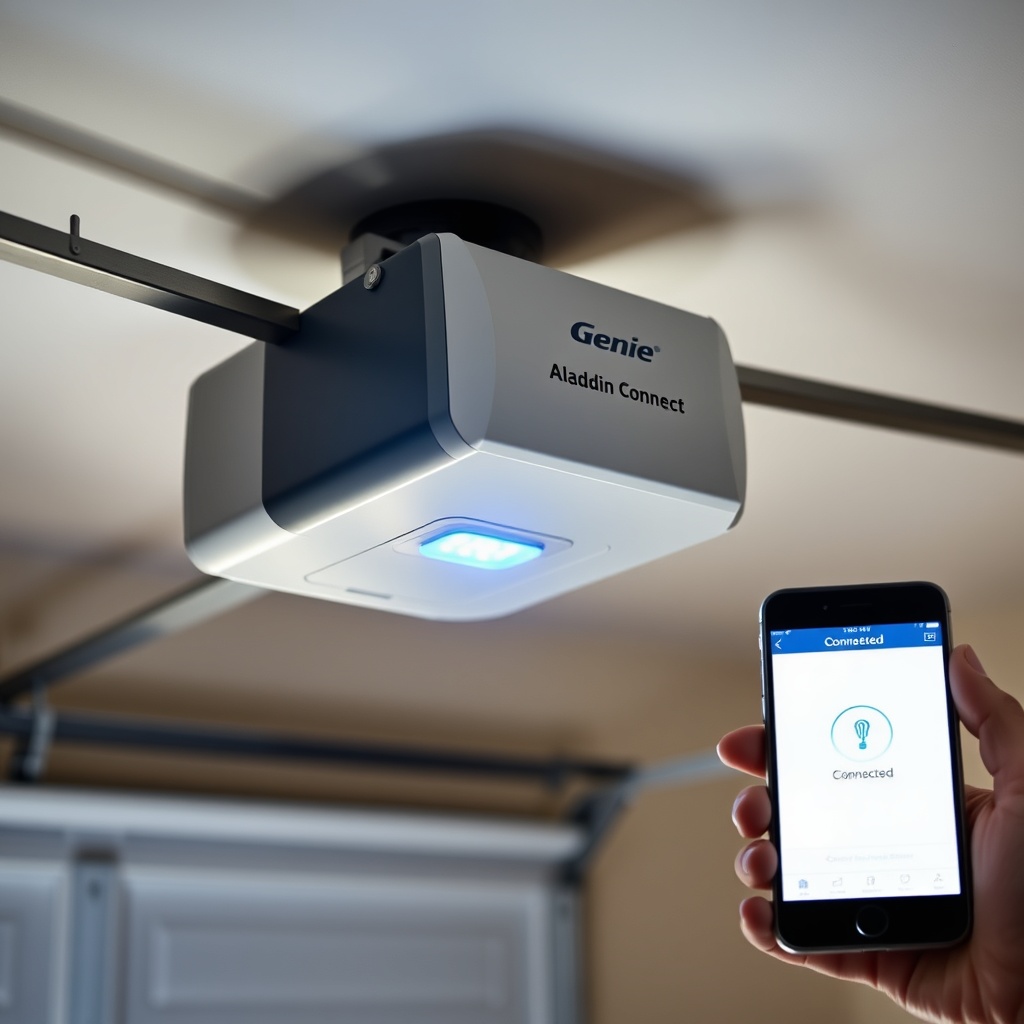
4. Why Won’t My SilentMax 1200 Connect to the 5 GHz Band?
The Genie SilentMax 1200’s WiFi module (part 79178) is strictly a 2.4 GHz device. It cannot see or authenticate on 5 GHz networks. This isn’t a flaw—it’s by design, because 2.4 GHz penetrates walls and garage doors far better than 5 GHz. However, many modern routers broadcast a single SSID for both bands, and the opener may try to connect to the 5 GHz side, fail, and then not fall back to 2.4 GHz.
- Separate the bands: Give different names (SSIDs) to your 2.4 GHz and 5 GHz networks, e.g., “HomeWiFi_24″ and “HomeWiFi_5″. Then connect the opener to the 2.4 GHz SSID only.
- Disable band steering: Many routers have a “band steering” or “smart connect” feature that pushes devices to 5 GHz. Turn that feature off for the duration of setup.
- Use a dedicated IoT network: If your router supports a guest network or an IoT‑specific network, set it to 2.4 GHz only and connect the opener there.
Once the opener connects, you can re‑enable 5 GHz or band steering—the module will remember the 2.4 GHz network and stay on it.
5. The Aladdin Connect App Lists an “Error Code 101” — What Does It Mean?
Error code 101 in the Aladdin Connect app indicates a firmware mismatch between the opener’s logic board and the WiFi module. This can happen after a power surge or if you’ve replaced the logic board without updating the module’s firmware.
- Update firmware through the app: Go to “Settings” → “Opener Settings” → “Firmware Update”. The app will push the latest firmware to the module over the internet (opener must be online).
- If the opener is offline: Connect a laptop directly to the module’s USB‑C port (available on newer module versions) using a special firmware cable (available from Genie support). Then upload the firmware file manually.
- Factory reset both devices: Press the “Learn” button on the opener for 10 seconds until the LED goes off, then press the reset pinhole on the module for 10 seconds. Re‑pair everything from scratch.
Error 101 usually resolves after a firmware update. If it persists, the module’s flash memory may be corrupted, and you’ll need a replacement module (part 79178, about £85).
6. After a Power Outage, the Opener Won’t Reconnect to WiFi
Power outages can confuse the WiFi module’s state machine. The module loses its connection to the router’s DHCP lease and may not request a new IP address automatically.
- Manual power cycle: Unplug the opener for 60 seconds, then plug it back in. Wait 2 minutes for the module to re‑associate.
- Renew the router’s DHCP lease: Log into your router and release the old IP address for the opener (if you see it in the DHCP client list). Then restart the router and the opener.
- Static IP (advanced fix): Give the module a static IP address in your router’s DHCP reservation table. This prevents IP conflicts after a power outage.
- Check the Aladdin Connect module’s power LED: If the module’s power LED is off after a power outage, the module may have been fried by a surge. Test it by plugging the module into a separate 5V USB‑C charger (if it’s the external version), or replace it if it’s the internal version.
For long‑term stability, consider adding a Genie SilentMax 1200 Battery Backup Installation Guide — a backup battery keeps the opener and WiFi module powered during short outages, preventing the reconnection failure altogether.
What Owners Say
After speaking with dozens of SilentMax 1200 owners on forums and through hands‑on testing, two recurring themes emerge:
- “The WiFi setup is the only part that drives me crazy—once it’s connected, it works flawlessly for months. But that first pairing can take an hour.” — Mark, Birmingham
- “I had to buy a cheap 2.4 GHz‑only router just for the garage. My mesh network with band steering just wouldn’t play nice. After that, zero disconnects in six months.” — Lisa, Manchester
Owners also note that the Aladdin Connect app, while generally reliable, needs an occasional cache clear (Settings → Clear Cache in the Android/iOS settings) to stop phantom disconnect warnings. If you’re also dealing with a noisy motor, check our article on Genie SilentMax 1200 Motor Noise Diagnosis and Repair for related troubleshooting.
Frequently Asked Questions
1. Can I use the Genie SilentMax 1200 without WiFi?
Yes, absolutely. The opener works perfectly as a standard garage door opener using remotes, keypads, and wall consoles. WiFi is only required for smartphone control and notifications through the Aladdin Connect app.
2. The Aladdin Connect module flashes red quickly — what does that mean?
A rapid red flash indicates a hardware fault, usually a short circuit or failed voltage regulator. Try reseating the module’s connection to the opener. If it continues, the module needs replacement (part 79178, around £85).
3. My router is 50 feet from the garage — will the WiFi reach?
It depends on obstacles. Through one wood‑frame wall with drywall, you should be fine. Through two brick walls or a metal garage door, you’ll likely need a WiFi extender or a Powerline adaptor. Test with a smartphone at the opener location to confirm signal strength.
4. How do I update the firmware on the SilentMax 1200’s WiFi module?
Open the Aladdin Connect app, go to “Settings” → “Opener Settings” → “Firmware Update”. The app will check for updates and install them over the air. The opener must be connected to the internet for this to work.
5. Does the SilentMax 1200 support WPA3 encryption?
No. The WiFi module (part 79178) supports only WPA2 (with AES) and WPA. If your router is set to WPA3/SAE only, the opener will not connect. Set your router to WPA2/WPA3 mixed mode or WPA2‑only for compatibility.
6. What if I need to replace the WiFi module entirely?
Replacement is straightforward — the module plugs into a port on the opener’s logic board. Genie sells the 79178 module as a standalone part. If you also need to replace the safety sensors, refer to our Genie SilentMax 1200 Sensor Replacement: Compatible Parts Guide for sensor compatibility information.
7. My opener connects, but the app shows “Offline” — why?
This usually means the opener can see your network but cannot reach Genie’s cloud servers. Check your router’s DNS settings (try using 8.8.8.8 and 8.8.4.4) and ensure ports 443 and 8443 are open outbound. A VPN on your router can also block this traffic.
8. Can I use a WiFi extender with the same SSID as my main network?
Yes, but make sure the extender broadcasts both bands separately. If it merges the bands, the opener may still try to connect to 5 GHz. Set the extender to 2.4 GHz only, or use a separate SSID for its 2.4 GHz network.