LiftMaster 8500 WiFi Connectivity Diagnosis: Network Interference Troubleshooting
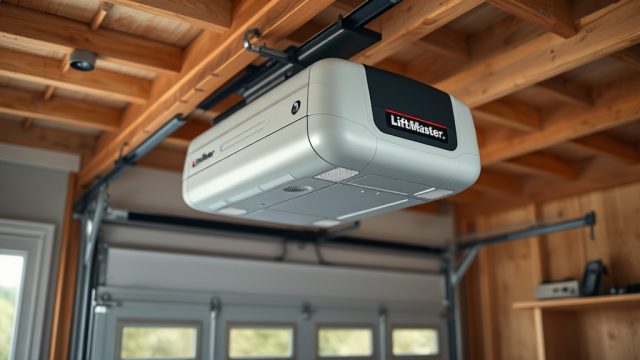
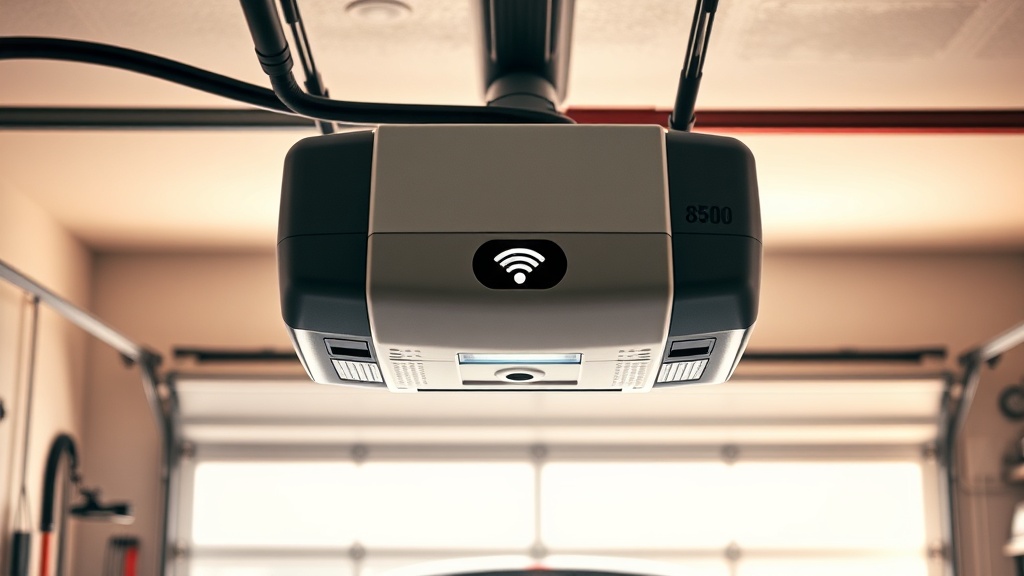
The LiftMaster 8500 is a powerful wall-mounted garage door opener known for its quiet operation and space-saving design. However, its integrated myQ Wi-Fi connectivity can sometimes suffer from network interference, leading to frustrating error codes and loss of remote access. This guide focuses on diagnosing and troubleshooting those Wi-Fi-related error codes, helping owners restore seamless control over their garage doors.
Network interference is one of the most common causes of Wi-Fi connectivity issues with the LiftMaster 8500, often manifesting as error codes like “Err” or the unit failing to sync with the myQ app. Understanding the specific error codes and their underlying causes is the first step toward a reliable fix.
What Does Error Code “Err” Mean on the LiftMaster 8500 When Connecting to Wi-Fi?
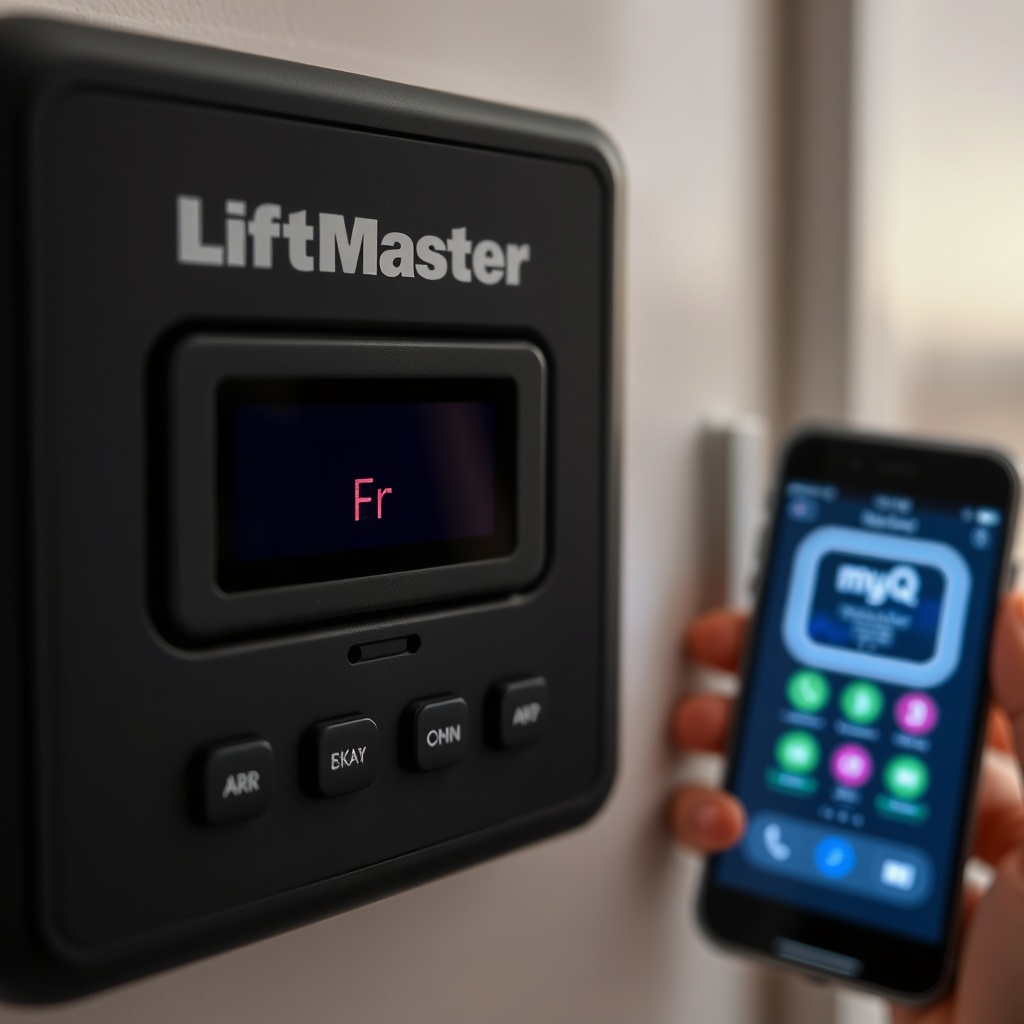
When the LiftMaster 8500 displays an “Err” code during Wi-Fi setup or operation, it typically indicates a communication failure between the opener and your home network router. This error can be triggered by several factors, including:
- Weak Wi-Fi signal strength at the garage door opener’s location.
- Interference from other electronic devices (e.g., baby monitors, microwaves, or wireless cameras).
- Outdated myQ app firmware or opener software.
- Incorrect network credentials (SSID or password) entered during setup.
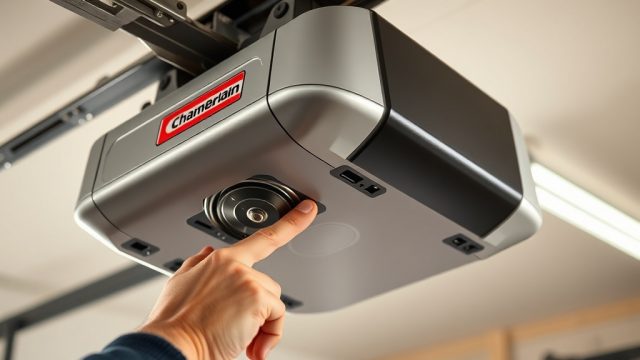
To resolve an “Err” code, start by restarting your router and the LiftMaster 8500. Then, move your Wi-Fi router closer to the garage or install a Wi-Fi range extender if the signal is weak. Ensure your myQ app is updated to the latest version from your app store. If the error persists, consider resetting the opener’s Wi-Fi module by holding the “learn” button for six seconds until the LED flashes.
How to Identify Wi-Fi Interference from Other Devices in the Garage?
Wireless interference in a garage environment is often overlooked but can severely impact the LiftMaster 8500’s connectivity. Common sources include:
- Old fluorescent light fixtures or LED bulbs (especially non-shielded types).
- Metal garage doors and steel studs that block radio waves.
- Other 2.4 GHz devices like cordless phones, Bluetooth speakers, or wireless security cameras.
- Neighboring Wi-Fi networks operating on the same channel.
To diagnose interference, temporarily turn off nearby electronic devices one by one and check if the Wi-Fi connection stabilizes. Use a Wi-Fi analyzer app (like NetSpot or Wi-Fi Analyzer) on your smartphone to see signal strength and channel congestion. If interference is confirmed, move the opener or router away from metal surfaces and switch your router to a less crowded channel, such as 1, 6, or 11. For persistent problems, upgrading to a dual-band router that supports 5 GHz for the myQ hub (if compatible) can help, though the LiftMaster 8500 typically operates on 2.4 GHz.
What Are the Specific Wi-Fi Error Codes on the LiftMaster 8500 and Their Meanings?
The LiftMaster 8500 uses a series of LED blinks and numeric codes to indicate Wi-Fi issues. Below is a severity table to help owners quickly identify the problem.
| Error Code | LED Blinks | Meaning | Severity |
|---|---|---|---|
| “Err” (constant) | 3 blinks | Wi-Fi setup failure – wrong password or router not found | Moderate |
| “Err” (intermittent) | 5 blinks | Network interference or signal too weak | High |
| “0” with steady LED | None | No Wi-Fi connection – opener not paired to myQ | Low |
| “6” or “7” | 2 blinks | Router firewall or port blocking issues | High |
| Flashing “Learn” button | Fast flashes | myQ server timeout or account error | Moderate |
For codes like “6” or “7”, check your router’s firewall settings to ensure ports 80 and 443 are open for the myQ service. If the “Learn” button flashes rapidly, log out and back into the myQ app, or reset the myQ account password. In severe cases, a factory reset of the opener’s Wi-Fi module may be necessary, which can be done via the myQ app or by pressing the “learn” button for 10 seconds.
If you encounter persistent errors related to the opener’s motor or power supply, consult our LiftMaster 8500 Opener Motor Capacitor Replacement: DIY Step-by-Step Guide for internal hardware issues that may mimic Wi-Fi problems.
What Steps to Reset the LiftMaster 8500 Wi-Fi Module for Error Codes?
Resetting the Wi-Fi module can clear many error codes caused by temporary network glitches or corrupted settings. Follow these steps:
- Press and hold the black “learn” button on the back of the LiftMaster 8500 for 6 seconds. The LED will flash steadily, then turn off, indicating the Wi-Fi memory has been erased.
- Release the button and wait for the LED to stop blinking (about 30 seconds).
- Open the myQ app and go to “Add Device.” Follow the on-screen instructions to reconnect the opener.
- If the reset fails, power cycle the opener by unplugging it for 5 minutes, then try again.
If the Wi-Fi module still fails to reset, the issue may lie in the opener’s main control board or power supply. In such cases, performing a LiftMaster 8500 Opener Motor Capacitor Testing: DIY Tutorial can help rule out capacitor-related electrical problems that affect the Wi-Fi module’s stability.
How to Test and Replace the LiftMaster 8500’s Wi-Fi Antenna or Receiver?
The built-in Wi-Fi antenna on the LiftMaster 8500 is generally robust, but physical damage or corrosion can weaken the signal. Symptoms include intermittent connectivity or error codes that appear only when the garage door is in motion. To test the antenna:
- Visually inspect the antenna (a small wire or PCB trace near the control board) for bends, breaks, or rust.
- If the opener has an external antenna port, connect a temporary antenna and check if the signal improves.
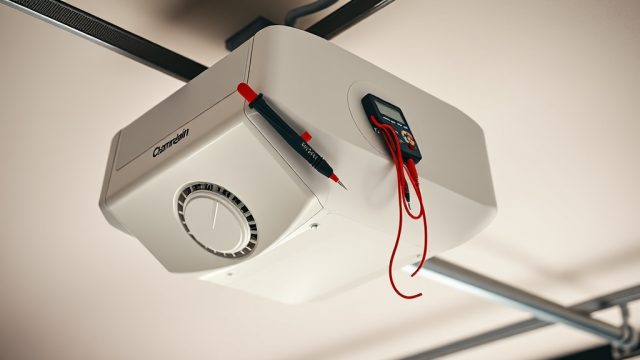
- Use a multimeter to verify continuity in the antenna circuit (resistance should be near zero ohms).
Replacing a damaged antenna requires removing the opener’s cover and carefully desoldering the old antenna. If the receiver module (usually a separate board) is faulty, it may need full replacement. However, before attempting such repairs, it’s wise to test other components like the motor’s thermoprotector, as overheating can cause erratic Wi-Fi behavior. See our LiftMaster 8500 Opener Motor Thermoprotector Testing: DIY Troubleshooting Guide for detailed steps.
What Owners Say About the LiftMaster 8500 Wi-Fi Connectivity Issues?
Many owners report that Wi-Fi problems on the LiftMaster 8500 are often linked to router compatibility rather than the opener itself. Common feedback includes:
- “My Wi-Fi drops every time I close the garage door—turns out the motor’s electromagnetic field was interfering with the 2.4 GHz signal.”
- “After moving my router from the living room to the garage, the error codes stopped completely.”
- “I had to disable the 5 GHz band on my router and force it to 2.4 GHz to make the myQ app work.”
- “Resetting the Wi-Fi module fixed the ‘Err’ code for a week, but then it returned. I ended up replacing the myQ hub after two years.”
- “The unit is great, but the Wi-Fi range is poor. I installed a Wi-Fi extender with a dedicated 2.4 GHz SSID, and now it works flawlessly.”
These real-world experiences highlight the importance of a stable network environment. If interference is suspected, owners often recommend repositioning the router or investing in a mesh Wi-Fi system.
Frequently Asked Questions
1. Why does my LiftMaster 8500 show “Err” when trying to connect to Wi-Fi?
The “Err” code usually means the opener cannot communicate with your router due to weak signal, incorrect password, or interference. Try resetting the Wi-Fi module and your router first.
2. Can a faulty start capacitor cause Wi-Fi connectivity issues?
Indirectly, yes. A failing start capacitor can cause voltage fluctuations that disrupt the Wi-Fi module’s operation. If you suspect this, perform a LiftMaster 8500 Opener Motor Start Capacitor Testing Guide to check for errors.
3. How do I change the Wi-Fi channel on my router for the LiftMaster 8500?
Log into your router’s admin interface (usually via a web browser at 192.168.1.1), navigate to wireless settings, and select a fixed channel (1, 6, or 11) for the 2.4 GHz band. Avoid “auto” mode, as it can cause switching errors.
4. Is the LiftMaster 8500 compatible with 5 GHz Wi-Fi networks?
No, the LiftMaster 8500’s myQ module only works with 2.4 GHz networks. Ensure your router broadcasts a 2.4 GHz SSID separately if it uses dual-band technology.
5. Can a power surge damage the Wi-Fi module on the LiftMaster 8500?
Yes, power surges can damage the Wi-Fi module or control board. Use a surge protector for the opener’s power outlet to reduce this risk. If symptoms persist after a surge, check the motor’s thermoprotector for damage; refer to our LiftMaster 8500 Opener Motor Overheating: Causes and Troubleshooting Guide for related issues.
6. How often should I update the myQ app and opener firmware?
Check for myQ app updates monthly. The opener firmware updates automatically when connected to Wi-Fi, but if you experience errors, manually check via the app’s settings. Outdated firmware can cause intermittent connectivity problems.