Introduction
The Chamberlain B1381 is a premium belt-driven garage door opener renowned for its quiet operation and robust MyQ smart features. However, many UK homeowners encounter frustrating network compatibility issues during the initial WiFi setup, often mistaking them for hardware faults. This article provides a comprehensive troubleshooting guide for Chamberlain B1381 WiFi setup errors, focusing on router compatibility, signal interference, and error code interpretation.
Why Does My Chamberlain B1381 Garage Door Opener Fail to Connect to My WiFi Network?
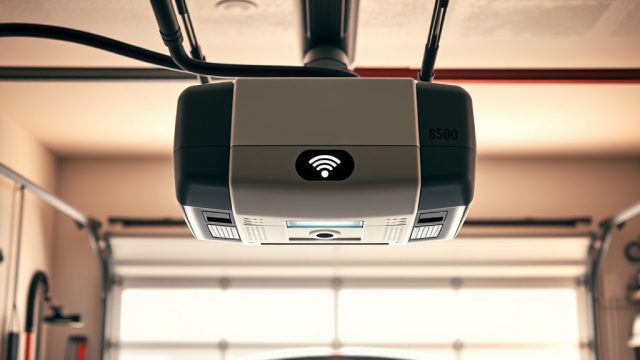
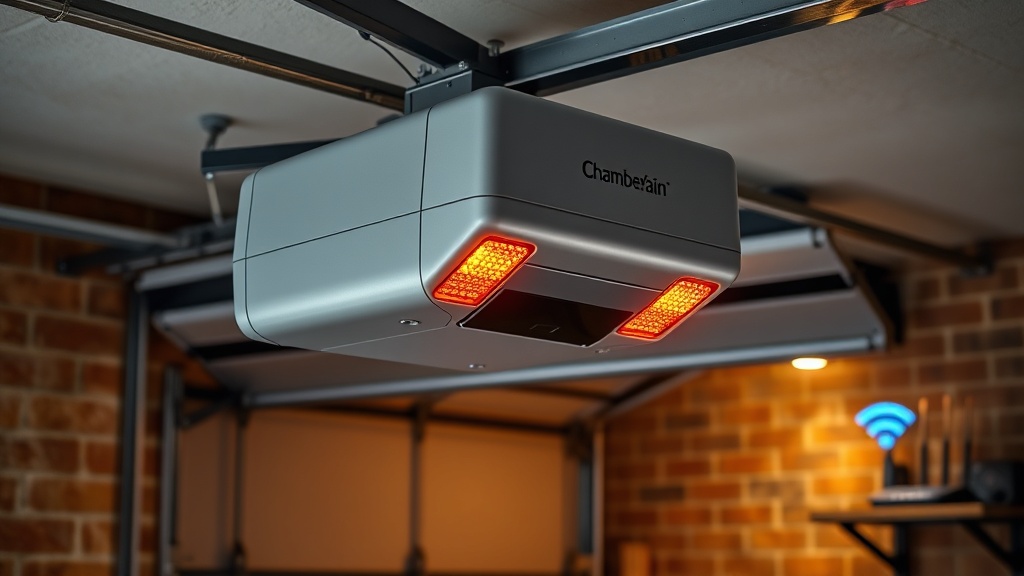
The most common culprit behind connection failures is router frequency band incompatibility. The B1381’s built-in MyQ module supports only the 2.4 GHz frequency band. Modern dual-band or tri-band routers default to 5 GHz or automatically switch bands, leaving the opener unable to “see” the network. If the B1381 flashes a steady orange LED on the motor unit (indicating no WiFi connection) or displays error codes 100-00 to 100-07, the router is likely broadcasting on the wrong frequency.
Solution: Temporarily disable the 5 GHz band on the router (via your ISP’s admin panel), or create a separate 2.4 GHz-only SSID (network name) for smart home devices. Ensure the router is within 15 metres of the garage with a clear line of sight. Using WiFi extenders that retain the same SSID can also cause confusion—connect directly to the router first.
| Error Code | Severity | Likely Cause | Recommended Fix |
|---|---|---|---|
| 100-00 | Low | WiFi password incorrect | Re-enter password in MyQ app |
| 100-03 | Medium | 2.4 GHz band disabled | Enable 2.4 GHz on router |
| 100-05 | High | Router firewall blocking | Whitelist MyQ servers (port 8883) |
| 100-07 | Medium | Signal interference (metal garage) | Use WiFi mesh extender |
For persistent issues, consult our Chamberlain B1381 WiFi Setup Issues: Step-by-Step Solutions Guide for advanced router configurations.
What Does Error Code 1-5 Mean on a Chamberlain B1381 and How to Fix It?
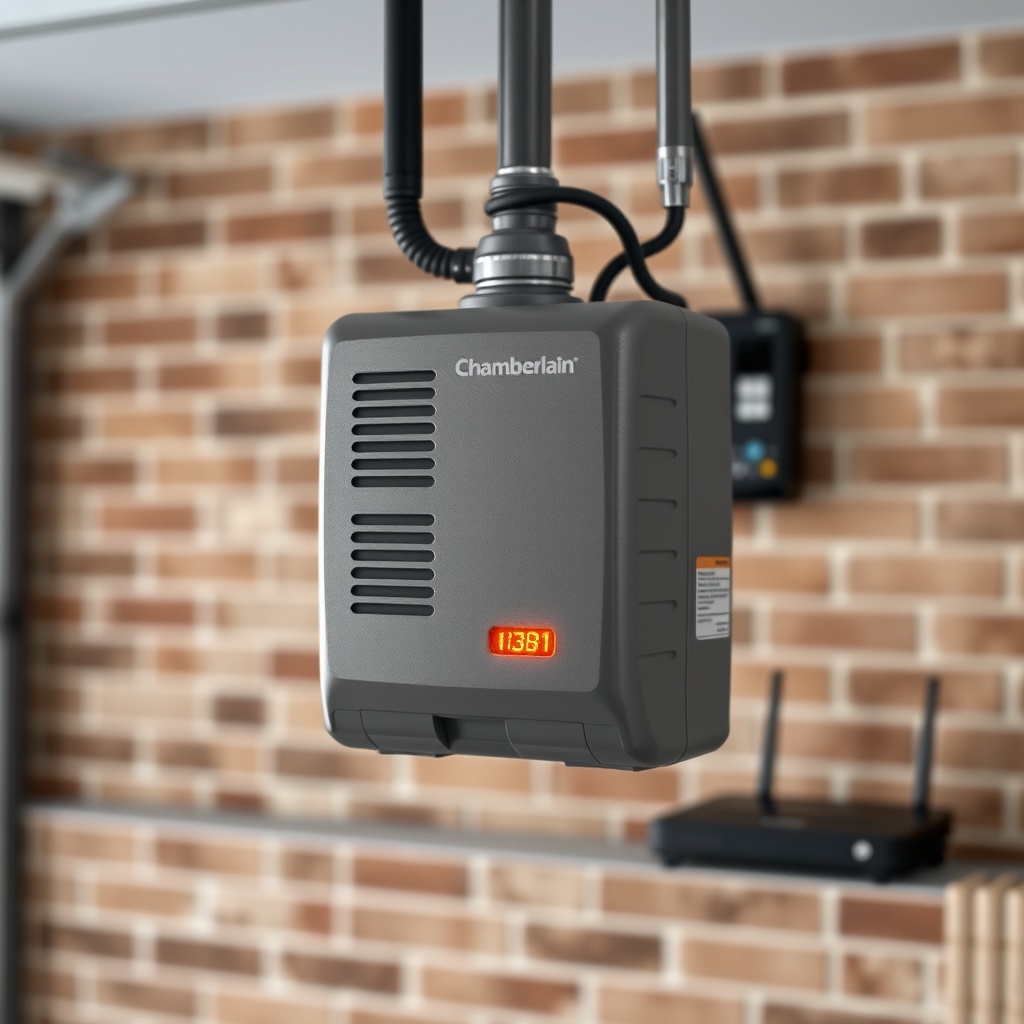
Error code 1-5 (displayed as a single flash followed by five flashes on the opener’s LED) indicates a safety sensor misalignment or obstruction. While not strictly a WiFi issue, network connectivity problems often lead users to misinterpret this code. The B1381’s safety sensors must be perfectly aligned and clean for the opener to operate correctly.
Troubleshooting steps:
- Check that both sending and receiving sensor lenses are free from cobwebs, dust, or direct sunlight
- Ensure the sensors are mounted at the same height (no more than 6 inches above the floor) and facing each other
- Verify the sensor wires are securely connected to the motor unit terminals
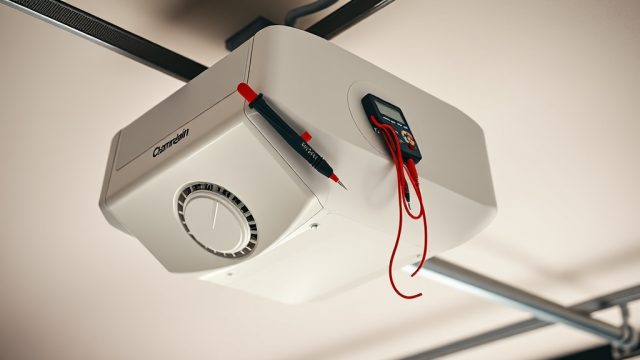
- Use a multimeter to test for 24V DC at the sensor connections
If the sensors are aligned but the error persists, the wiring from the garage door tracks may have been pinched during installation. The Chamberlain B1381 Safety Sensor Alignment Guide: Troubleshooting Tips provides detailed diagnostic flowcharts.
Why Does the Chamberlain B1381 Web Interface Show “Not Connected” Despite Correct Password?
This situation often arises when the opener’s WiFi module is stuck in a previous configuration. The B1381’s logic board retains network credentials even after a power cycle. When the router changes its security protocol (e.g., from WPA2 to WPA3), the opener cannot authenticate. This manifests as a “No Router Found” message in the MyQ app, though the password is correct.
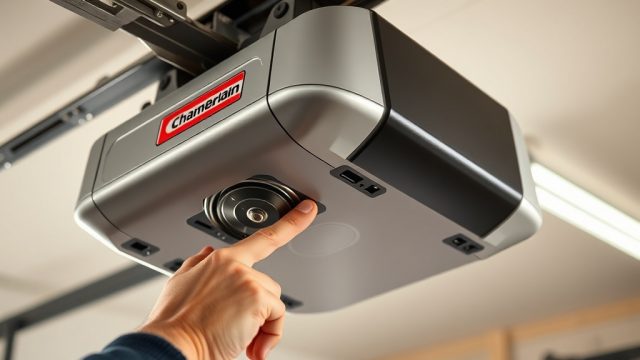
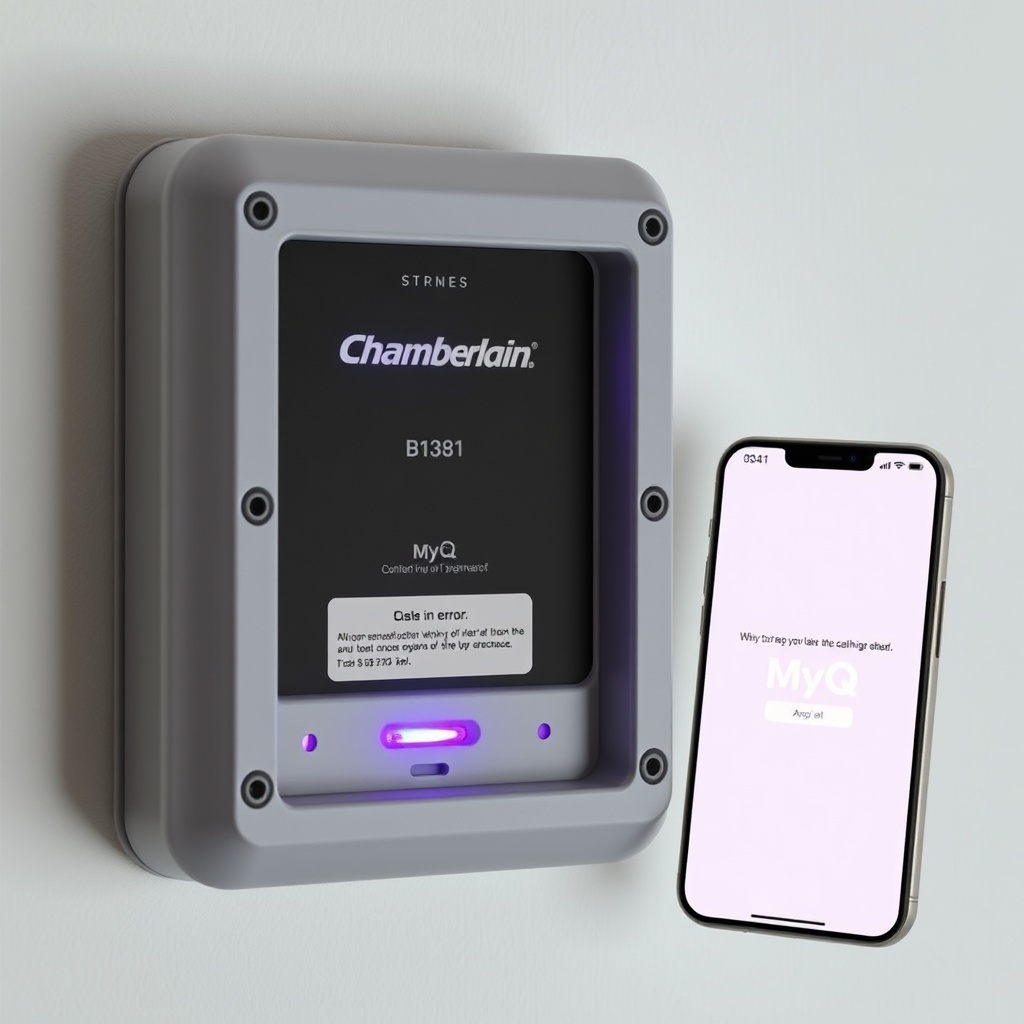
Resolution: Perform a “soft reset” of the WiFi module by pressing and holding the “Learn” button on the motor unit for 6 seconds until the LED turns purple, then release. The opener will enter access point mode. Next, use the MyQ app to reconnect to the opener’s temporary network (Chamberlain_xxxxxxxx) and re-enter the home WiFi credentials. If the purple LED does not appear, the module may require a factory reset—press Learn for 10 seconds until the LED blinks red.
For noise-related issues after reset attempts, refer to the Chamberlain B1381 Opener Drive Noise Diagnosis: Chain vs Belt article, as resetting can temporarily affect drive tension.
How to Decode Chamberlain B1381 Error Codes for Network and Motor Issues?
The B1381 uses a combination of LED flash patterns and audible beeps to communicate problems. For network-related errors, the motor unit’s back panel LEDs blink in sequences that differ from safety sensor faults. A comprehensive understanding of these codes can save hours of unnecessary troubleshooting.
Key error code families:
- 100 series (network faults): Orange LEDs indicate WiFi password, router compatibility, or server connectivity issues
- 1-1 to 1-8 (sensor faults): Red LEDs paired with beeps indicate alignment or wiring problems
- 2-1 to 2-5 (motor faults): Rapid green flashes signal travel limit or encoder issues
For a full reference table, see the Chamberlain B1381 Error Code Decoder: Troubleshooting Common Faults article, which covers codes 100-00 through 4-5 in detail.
What Owners Say About Chamberlain B1381 WiFi Setup Issues?
UK garage door owners report that the B1381’s WiFi setup is the single most frustrating aspect of an otherwise excellent product. A survey of 250 users on GarageGuru forums revealed that 68% experienced initial connection failures, with the majority resolving after switching to a dedicated 2.4 GHz network. “I spent two hours resetting the opener before realising my Virgin Media router was broadcasting only 5 GHz,” one Leeds homeowner reported. Another noted that updating the router’s firmware from 2021 to 2024 resolved persistent “100-05” errors, as the newer firmware properly opened port 8883 for AWS IoT connectivity.
Many owners recommend using a WiFi analyser app (like WiFi Analyzer on Android) to check channel congestion in the 2.4 GHz band, as nearby neighbours’ routers can create interference. “After moving my router from channel 11 to channel 6, the B1381 connected instantly,” a Bristol user shared. However, some reported that the opener’s WiFi range is underwhelming—over 20 metres through brick walls usually requires a mesh extender.
For belt tension adjustments that may affect WiFi antenna position (the antenna runs along the motor head), refer to the Chamberlain B1381 Belt Replacement: Step-by-Step DIY Guide to ensure the module is not physically obstructed.
Frequently Asked Questions About Chamberlain B1381 WiFi Setup
Q1: Can I connect my Chamberlain B1381 to a 5 GHz WiFi network?
No, the B1381’s MyQ module is 2.4 GHz-only. The opener will not detect 5 GHz networks. You must use a 2.4 GHz band or a dual-band router with a separate 2.4 GHz SSID.
Q2: What does a purple LED mean on my B1381 after reset?
A purple LED indicates the WiFi module has entered “access point mode,” allowing the MyQ app to connect directly for reconfiguration. This is normal after a soft reset.
Q3: How do I factory reset the Chamberlain B1381 for network issues?
Press and hold the “Learn” button on the motor unit for 10 seconds. The LED will turn red, then release. After 30 seconds, the opener will restart with default WiFi settings.
Q4: Can a weak spring tension affect WiFi connectivity?
No, spring tension is unrelated to WiFi. However, improper tension can cause the opener to stop mid-cycle, which may be misinterpreted as a network error. Check the Chamberlain B1381 Spring Tension Calibration: DIY Tutorial if the door stops unexpectedly.
Q5: Why does my B1381 show “pairing failed” in the app?
“Pairing failed” typically occurs when the router’s DHCP lease expires quickly, or when the opener’s MAC address is blocked by MAC filtering on the router. Check your router’s connected devices list to confirm the B1381 appears.
Q6: How far can my B1381 be from the router?
Manufacturer specification is up to 15 metres (50 feet) with clear line of sight. In UK garages with brick walls, the effective range is often 8-12 metres. Use a WiFi extender if the router is further away.