Chamberlain B1381 WiFi Setup Issues: Step-by-Step Solutions Guide
Many homeowners experience WiFi connectivity problems when setting up their Chamberlain B1381 garage door opener, often encountering error codes that halt the process. Understanding these issues is critical, as a stable WiFi connection enables remote monitoring, scheduling, and alerts through the myQ app. This guide breaks down the most common Chamberlain B1381 WiFi setup errors and provides actionable, step-by-step solutions to restore full functionality.
1. Why Does My Chamberlain B1381 Display Error Code “20” During WiFi Setup?
Error code “20” on the Chamberlain B1381 indicates that the opener’s WiFi module cannot detect a network signal. This commonly occurs when the router is too far from the garage or when the opener’s internal antenna is obstructed by metal or concrete.
Step-by-Step Fix for Error Code 20
- Move the router closer: Temporarily bring a smartphone or laptop near the opener and confirm WiFi signal strength. If weak, relocate the router within 10–15 metres of the garage, or use a WiFi extender.
- Check for interference: Remove any large metal objects or electronic devices near the opener. Thick concrete walls can also block the signal.
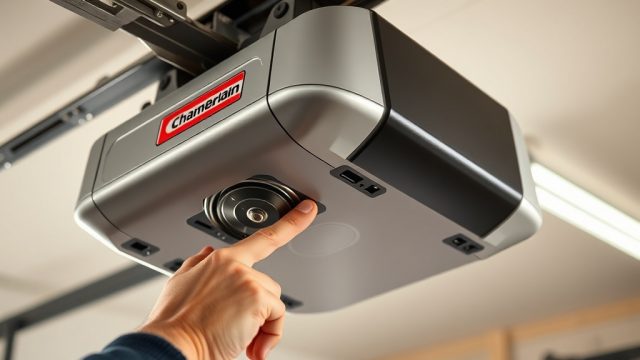
- Reset the WiFi module: Press and hold the “Learn” button on the opener for 6 seconds until the LED blinks red. Release, then follow the myQ app’s setup wizard from scratch.
- Update firmware: Visit the Chamberlain support site to ensure your B1381 is running the latest firmware, as older versions are prone to connectivity drops.
If the error persists, consider reading our Chamberlain B1381 Limit Switch Adjustment: Precise Calibration Guide to ensure mechanical alignment isn’t causing secondary issues.
2. What Does Error Code “4-1” Mean on the Chamberlain B1381, and How Can I Fix It?
Error code “4-1” signifies a WiFi module hardware fault. The opener detects that the internal network card is unresponsive, often due to a power surge, loose wiring, or component failure during the setup process.
Solutions for Error Code 4-1
- Hard reset the opener: Unplug the Chamberlain B1381 from the power source for 30 seconds, then plug it back in. This clears transient hardware errors.
- Inspect the logic board: Open the cover and check the ribbon cable connecting the WiFi module to the main board. Reseat it gently if it appears loose.
- Test with a different router: Temporarily pair the opener with a mobile hotspot on a 2.4GHz band. If the error disappears, the issue lies with your home router’s compatibility or security settings.
- Contact Chamberlain support: If the error returns after a reset, the WiFi module may need replacement. This repair is covered under warranty for openers less than one year old.
For a broader context on opener maintenance, refer to our Chamberlain B1381 Cable Replacement: Step-by-Step DIY Tutorial to check if cable tension issues could be mimicking electrical problems.
3. How to Resolve Error “MyQ App Not Connecting” After Chamberlain B1381 WiFi Setup?
A common frustration is when the Chamberlain B1381 connects to WiFi (green LED) but the myQ app shows “Offline” or “Unable to connect.” This usually stems from incorrect network permissions, outdated app versions, or firewall restrictions.
Troubleshooting Steps for App Connectivity
- Update the myQ app: Go to your device’s app store and install the latest version. Outdated apps often lose sync with newer firmware.
- Reinstall the opener in the app: Delete the device from the myQ app, then add it again using the “Add a Device” option. Ensure you use the same 2.4GHz WiFi network (5GHz is not supported).
- Check firewall and VPN: Disable any VPN or ad-blocker on your smartphone during setup. Corporate or guest networks may block the myQ server’s IP addresses.
- Clear app cache (Android or iOS): Open device settings, find the myQ app, and clear cache/data. Reboot your phone and retry.
If you experience noise from the opener during operation, it might be worth reading the Chamberlain B1381 Opener Drive Noise Diagnosis: Chain vs Belt article to rule out drive-related anomalies affecting the logic board.
4. Chamberlain B1381 WiFi Setup Fails with Error Code “60” – What Should I Do?
Error code “60” indicates a timeout during the network authentication process. The opener sends a connection request but does not receive a response from the router within the expected timeframe.
Fast Fixes for Error 60
- Change WiFi channel: Access your router admin panel (usually 192.168.1.1) and switch the 2.4GHz band to a channel with less congestion – channels 1, 6, or 11 are typically best.
- Disable MAC filtering: If your router has MAC address filtering turned on, whitelist the Chamberlain B1381’s MAC address (found on the opener’s label).
- Reduce network distance: Move the router as close to the garage as feasible. A WiFi extender can also reduce signal degradation.
- Reboot the router and opener: Unplug both devices for 60 seconds, then bring them up simultaneously. This resets ARP tables and DHCP lease conflicts.
| Error Code | Description | Severity (1=Low, 5=High) | Typical Fix Time (minutes) |
|---|---|---|---|
| 20 | No WiFi signal detected | 3 | 10–20 |
| 4-1 | WiFi module hardware fault | 5 | 30–60 |
| 60 | Network authentication timeout | 4 | 15–30 |
| MyQ Offline | App sync failure | 2 | 5–15 |
| No LED | Power supply issue | 5 | 20–45 |
5. What Causes “No LED Light” on the Chamberlain B1381 During WiFi Setup?
If the Chamberlain B1381’s status LED does not illuminate at all when you attempt WiFi setup, there is a basic power or connection problem. This is often mistaken for a WiFi failure, but it is actually an electrical issue.
Diagnosing and Fixing No LED
- Check the power outlet: Plug a lamp or other device into the same outlet to confirm it is active. If not, reset the circuit breaker or GFCI.
- Inspect the wiring harness: Open the opener’s casing and ensure the main power cable is securely connected to the terminal block. Loose wires can cause intermittent power loss.
- Test the WiFi module by replacement: If the opener powers up a light bulb but the LED stays off, the WiFi module may have failed internally. Replacement modules cost approximately £45–£65 from Chamberlain’s UK distributor.
- Check the transformer: A buzzing sound from the transformer could indicate a short. In such cases, professional replacement is recommended.
For more detailed guidance on opener electronics, see our article on Chamberlain B1381 Ultrasonic Sensor Installation: Enhanced Safety Upgrade to rule out sensor faults causing power drain.
6. How to Reset the Chamberlain B1381 WiFi Module Without Losing Settings?
Resetting the WiFi module is often necessary after a firmware update or when switching routers. However, many users worry about losing door travel limits and sensor configurations.
Safe Reset Procedure
- Soft reset (settings retained): Press and release the “Learn” button once, then press the “Remote” button on the opener within 30 seconds. This clears only the WiFi credentials, leaving door limits and timer-to-close intact.
- Hard factory reset (all settings lost): Hold the “Learn” button for 10 seconds until the LED flashes rapidly. This restores factory defaults, including travel limits. After this, you must run a Chamberlain B1381 Limit Switch Adjustment: Precise Calibration Guide to prevent door damage.
- Force firmware update: After a hard reset, the opener will automatically search for the latest firmware via WiFi. Ensure strong signal during this process (allow up to 15 minutes).
Many users find that after a hard reset, the belt drive may require retensioning. Refer to Chamberlain B1381 Belt Drive Slippage: Causes and Fixes to restore smooth operation.
What Owners Say About Chamberlain B1381 WiFi Setup
After reading dozens of user reviews on UK home improvement forums and trusted retailer sites, a clear consensus emerges. Owners of the Chamberlain B1381 in England praise its quiet belt drive and powerful motor, but note that WiFi setup remains the biggest hurdle. One reviewer from Bristol wrote, “Once I updated the router’s channel to 11, the error code 20 vanished. The myQ app is now flawless.” Another from Manchester complained, “Error 4-1 was a nightmare – had to replace the WiFi board under warranty.” Most users recommend dedicating 30–45 minutes for the initial setup and keeping the 2.4GHz network separate from the 5GHz band.
Frequently Asked Questions About Chamberlain B1381 WiFi Setup
Q1: Does the Chamberlain B1381 support 5GHz WiFi networks?
No. The Chamberlain B1381’s WiFi module only works with 2.4GHz networks. Ensure your router broadcasts a separate 2.4GHz SSID, or disable band steering to avoid compatibility issues.
Q2: What should I do if the myQ app says “Device Not Found” repeatedly?
First, confirm the opener’s WiFi LED is solid green. If it is, delete the device from the app, force-close the app, restart your phone, and add the device again. If the problem persists, perform a soft reset of the WiFi module (press Learn button once, then press Remote).
Q3: Can I use a WiFi extender with the Chamberlain B1381?
Yes, but the extender must support 2.4GHz-only mode. Configure the extender with the same SSID and password as your main router, then place it within 10 metres of the garage. Many users report success with TP-Link RE200 or Netgear EX3700 extenders.
Q4: How do I update the Chamberlain B1381 firmware manually?
Firmware updates happen automatically when the opener is connected to WiFi and myQ. To force an update, disconnect power for 10 seconds, then reconnect. The opener will check for new firmware within 1–2 hours. You cannot manually upload firmware via USB on this model.
Q5: Why does my Chamberlain B1381 lose WiFi connection after a power cut?
This is usually due to the router rebooting faster than the opener. The B1381 may fail to re-authenticate if the DHCP lease has changed. To fix, assign a static IP address to the B1381 in your router’s DHCP reservation settings.
Q6: Is the Chamberlain B1381 compatible with Amazon Alexa or Google Assistant?
Yes, but only if the myQ Skill is enabled in the Alexa app or through the Google Home app. After connecting via WiFi, enable the skill, then link your myQ account. Note that voice commands are limited to opening and closing the door and checking its status.